How to Make a 3D Drill Hole Figure for a News Release
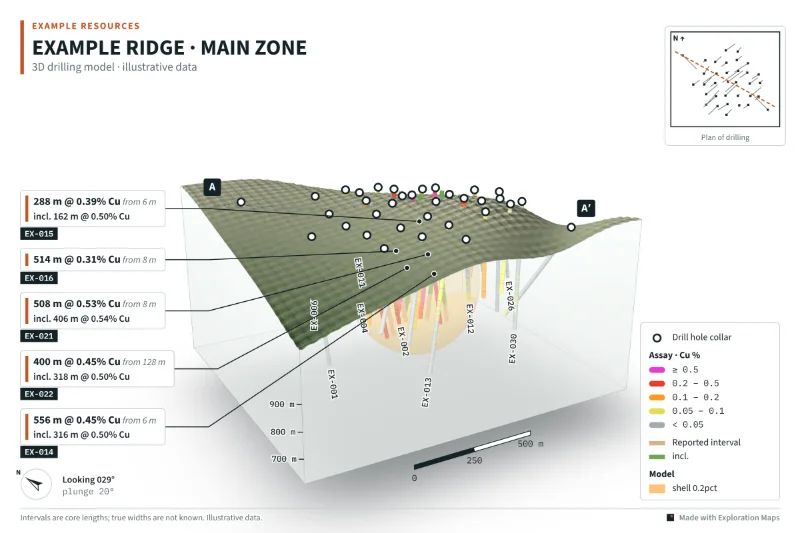
Export collars, surveys and assays from your drill database as CSV, drop them into Exploration Maps 3D, read the data checks, set the coordinate system, then choose the grade column, colour limits and intercept callouts. Pick a camera angle and section line, and export the News release 3:2 PNG with the matching section A–A′. Everything is built in the browser from your files; the Example Ridge project shown here is fictional sample data.
What a 3D drill figure is for
A plan map shows where the holes are. A 3D figure shows what they went through: how deep the mineralised intervals sit, whether neighbouring holes line up, and how big the drilled volume is. One clear 3D figure with the headline intercepts called out often does more work in a release than a page of tables, and it goes straight into the deck.
The workflow below uses Exploration Maps 3D, a browser tool in beta. It is a figure maker, not a modelling package: it draws the data you give it, and it does not estimate resources. If you have not chosen between a section and a 3D view yet, read cross sections vs 3D block figures first.
What you need before you start
Export these tables from your drill database or logging software as CSV. Loose files and a ZIP of them both work.
Coordinates should be in UTM metres; latitude and longitude work for collars, but topography and model files must be in metres to line up. Dips can be negative or positive down. Have your logo ready (PNG, JPG or SVG), and agree the title and footnote wording with your Qualified Person before you start, not after.
| File | Needed? | Columns | If you leave it out |
|---|---|---|---|
| Collars | Required | Hole ID, Easting, Northing, Elevation, Depth (Azimuth and Dip can go here too) | No figure |
| Assays | Required | Hole ID, From, To, and grade columns such as Cu %, Au g/t or CuEq | Traces draw without grade colours |
| Surveys | Optional | Hole ID, Depth, Azimuth, Dip | Holes run straight from the collar orientation |
| Topography | Optional | X, Y, Z points or LiDAR | The surface is fitted to collar elevations, or to real elevation once a coordinate system is set |
| Model shapes | Optional | OBJ meshes, such as a modelled grade shell or geology | No model in the block |
Step 1: Load your files
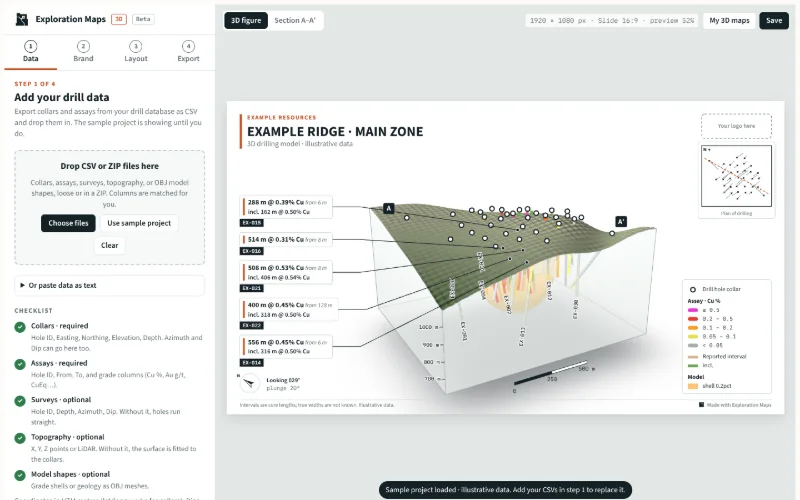
Open Exploration Maps 3D. The sample project is on screen until you add your own data. Drag your CSVs, or a ZIP containing them, onto the drop zone in step 1, or use Choose files. Columns are matched for you by name, and the file name helps identify each table, so collars.csv, surveys.csv and assays.csv are recognised without any setup. If your data is in a spreadsheet, you can paste CSV text with a header row instead.
Step 2: Read the data checks before you style anything
Below the file list, the Data checks panel counts what was loaded and placed, and lists problems that would otherwise show up as a wrong-looking figure. Fix these in the source file and reload rather than working around them on the figure.
- Assay or survey rows for a hole with no collar
- Intervals where From is greater than or equal to To
- Overlapping intervals in the same hole
- Intervals deeper than the hole's recorded depth
- Conflicting survey records at the same depth
- Dips out of range
- Collars far away from the rest of the program, often a coordinate typo
Step 3: Set the coordinate system for real terrain
In the Location box, enter the coordinate system of your files, for example EPSG:26909 or "UTM 9N NAD83". With it set, the surface can come from real elevation (AWS Terrain Tiles) with a satellite drape (Esri imagery); without it, the surface is fitted to your topography file or the collar elevations. Surveyed collars are data and a terrain tile is an approximation, so by default the terrain is moved to meet the collars. The figure credits imagery and elevation sources automatically.
Step 4: Brand the figure
In step 2, add your logo and the figure picks its title and accent colours from it; you can change either. Set the company name, figure title and subtitle, and the footnote. The default footnote reads "Intervals are core lengths; true widths are not known." Keep that, or replace it with the wording your QP has approved. The footnote is part of the figure, so it travels with it when the image is reposted on its own.
Step 5: Colour the holes and choose the callouts
In step 3, pick the grade column the holes are coloured by. Four lower limits define the colour classes; Suggest from data proposes limits from your assays. The "Show intervals ≥" control is a display cut-off: intervals below it draw as the plain trace so the eye goes to the grade, while the callouts are calculated from the full data. If you need a metal equivalent, the calculator in the same step adds one from your prices and recoveries; see the CuEq formula guide.
Intercept callouts are chosen from your assays using the number shown, a minimum length, a broad cut-off and an "incl." cut-off, and you can add a second grade (for example Au g/t beside Cu %). Every callout can be edited or hidden per hole. Check each against the release table: the callout should say exactly what the release says. For the arithmetic behind an equivalent grade, read the CuEq formula and calculator guide.
Step 6: Pick the camera and the section line
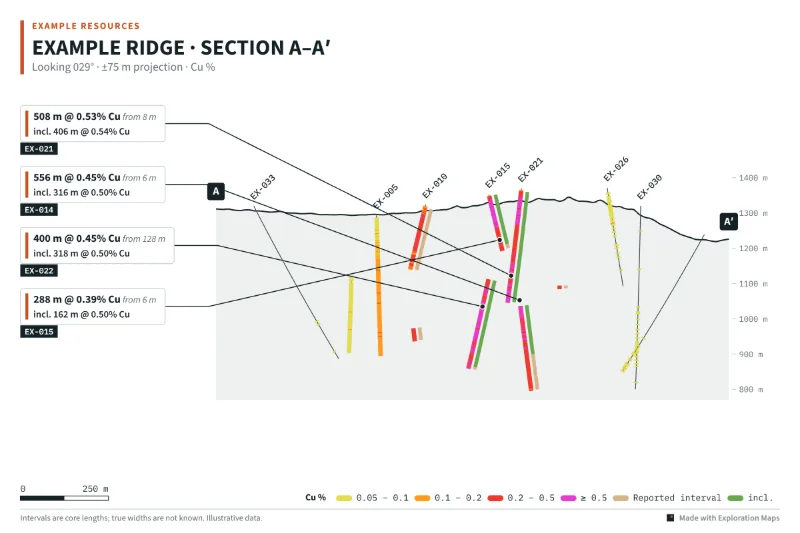
Start from a preset (Facing the section, Opposite side, Low angle or Plan view), then adjust the azimuth, plunge and zoom. Look for the angle where the callout leader lines do not cross the best intervals and no hole hides behind another. The section line A–A′ is set by its azimuth and a projection width either side; holes within that distance are projected onto the section. Vertical exaggeration goes up to 5×, and the figure prints it next to the plunge whenever it is not 1×.
Step 7: Labels, block style and context
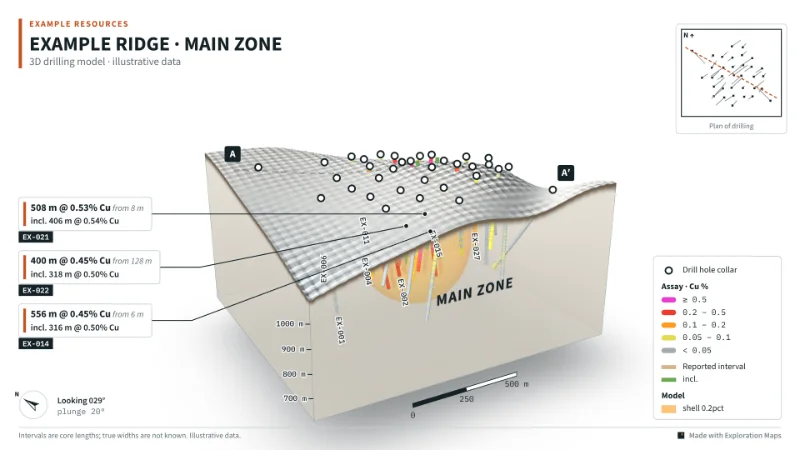
Text labels can be dragged anywhere on the frame, with an optional arrow; labels on the block are painted onto a face in perspective. Choose a glass block, or a solid block with the near faces cut away. Hole IDs, the plan inset, intercept bars and elevation ticks can each be turned off if the figure is crowded. "Assays pending" labels come from the collar status column.
Step 8: Export at the size you need
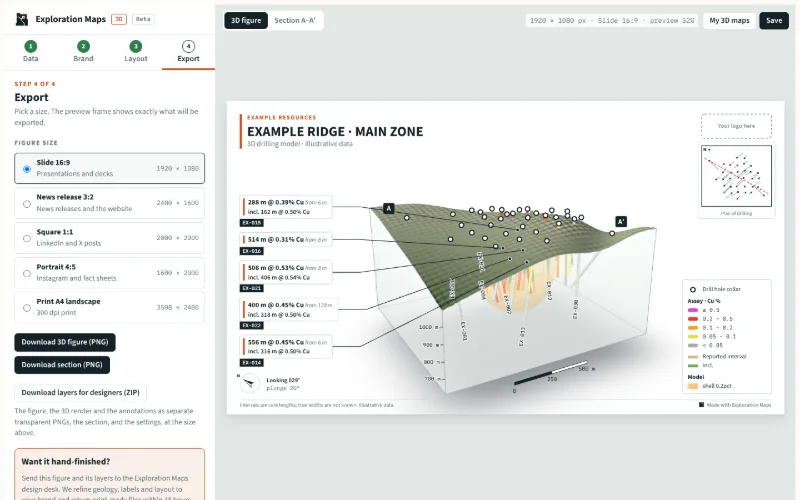
Step 4 shows the export sizes, and the preview frame is exactly what will be exported. Download the 3D figure and the section as PNGs. Download layers for designers gives a ZIP with the full figure, the 3D render and the annotations as separate transparent PNGs, the section, and a settings file, so a designer can finish the figure without redrawing it.
| Size | Pixels | Use |
|---|---|---|
| Slide 16:9 | 1920 × 1080 | Presentations and decks |
| News release 3:2 | 2400 × 1600 | News releases and the website |
| Square 1:1 | 2000 × 2000 | LinkedIn and X posts |
| Portrait 4:5 | 1600 × 2000 | Instagram and fact sheets |
| Print A4 landscape | 3508 × 2480 | 300 dpi print |
Save it, or hand it to the design desk
Save stores the figure and its files in your Exploration Maps account (a free account; the sign-in link creates one), and My 3D maps reopens it for the next release. To have a figure hand-finished, send it and its layers to the design desk from the export step. To have every figure kept current as results arrive, see Exploration Maps for Teams.
Before it goes on the wire
- Every callout matches the release table: length, grade, element and from-depth
- Lengths are described as core lengths unless true widths are known and stated
- Holes drilled but not yet reported are labelled, not left as blank traces
- A metal equivalent states its formula, prices and recoveries on the figure
- Vertical exaggeration, if any, is shown, and the section's projection width is stated
- Any grade shell is labelled as an exploratory envelope, not a model or a resource
- The QP has reviewed the final exported file, not an earlier draft