How to Show 'Assays Pending' Holes and Intercepts on Drill Figures
Draw every hole in the program, and label the ones still awaiting results "Assays pending" rather than leaving them as blank traces that read as barren. Mark collars whose positions are not yet surveyed as provisional. Report intercepts as core length, grade and from-depth, matching the release table. In Exploration Maps 3D, a Status column in the collar file drives the pending labels. This is presentation practice, not legal advice: the QP decides what the figure must say.
Why pending holes belong on the figure
Programs report in batches. A release may cover eight holes while six more are at the lab. Leaving those six off the figure makes the program look smaller than it is, or, worse, makes the reported holes look selected. Drawing them without a label is no better: a plain grey trace sits in the same colour as low-grade core, so a reader sees six barren holes. The fix is a label on each one.
Four states a hole can be in
Each state needs to look different from the others. The main error is drawing pending and unsampled holes in the same way as low-grade results.
| State | What to draw | Label |
|---|---|---|
| Reported | Trace coloured by grade, callout for headline intervals | Hole ID; intercept as length @ grade from depth |
| Drilled, assays pending | Trace drawn, not coloured as grade | "Assays pending" along the hole |
| Drilled, not sampled or abandoned | Trace drawn | A short note such as "not sampled" or "abandoned at 85 m" |
| Planned | Usually a collar symbol or dashed trace on plans only | "Planned", kept visually distinct from drilled holes |
Provisional collar positions
Collars located by handheld GPS, or projected from a planned position, are often surveyed properly later. Until then, a figure that draws them the same as surveyed collars overstates the precision. Draw them visibly differently and say so in the legend. In Exploration Maps 3D, a hole whose collar status or flags say provisional, projected, approximate, unverified, unsurveyed, hand-held or uncertain is drawn dashed and fainter, and the legend adds "Provisional position". You can also switch the flag on or off per hole.
Intercept labels that match the release
For equivalents, the arithmetic and what to state are in the CuEq formula guide.
- Length, grade and element, with the from-depth: "32.0 m @ 0.53% Cu from 8 m"
- Core length unless true width is known, and the footnote saying which
- An "incl." interval only if the release reports it, with the same cut-off
- The same rounding as the release table, so the figure and text cannot disagree
- A metal equivalent only with its formula, prices and recoveries stated
Step 1: Add a Status column to the collar file
Add a column called Status (or Notes) to the collars CSV. Write "Assays pending" for holes awaiting results, and anything else for the rest. A status column placed last in the row can contain commas, for example "Complete, assays pending". Leave those holes' rows out of the assay file, or keep only the intervals already reported. The rows below are from the fictional Example Ridge sample.
| HoleID | Easting | Northing | Elevation | Depth | Status |
|---|---|---|---|---|---|
| EX-018 | 412286.5 | 6422222.5 | 1269.7 | 492.2 | Assays received |
| EX-019 | 412457.0 | 6421525.1 | 1342.5 | 351.3 | Drilled, assays pending |
| EX-034 | 412820.0 | 6421470.0 | 1242.2 | 460.0 | Collar provisional (handheld GPS) |
Step 2: Turn on the pending labels
Load the files in Exploration Maps 3D. In the Layout step, under Display, "Assays pending" from collar status is on by default and writes ASSAYS PENDING along each matching hole on the 3D figure and the section. If your file has no status column, "Label holes without assays" labels every hole that has no assay intervals instead; check that list carefully, because it will also catch holes that were never sampled.
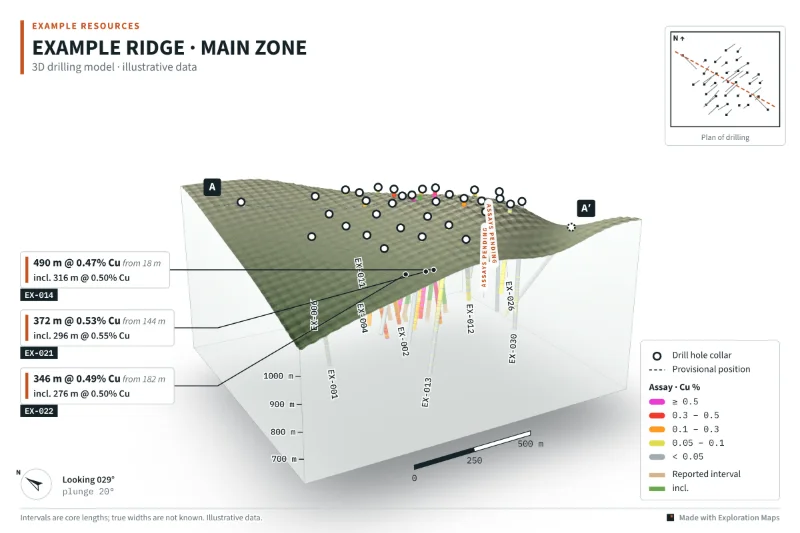
Step 3: Check the callouts and the footnote
Callouts are calculated from the assays you loaded, so a pending hole gets none. Review each remaining callout against the release table and edit the text if your release rounds differently. Keep a footnote that says intervals are core lengths and true widths are not known, unless your QP has determined true widths. Then export the figure and the section and have both reviewed together.
The rest of the figure workflow, from loading files to export sizes, is in how to make a 3D drill hole figure. On a 2D collar plan the same principle applies; see how to make a drill results map.
When results arrive
Remove the pending status, add the new assay rows, and re-export. The figure updates in place, with the same camera, colours and labels, so the next release shows the same program with the gaps filled. Saving the figure to your account keeps that setup for the next batch.
Pre-release checklist
- Every hole drilled in the period is on the figure
- Holes awaiting results are labelled, and are not coloured like low grade
- Provisional collar positions are visibly different and in the legend
- Callouts match the release table, including rounding and from-depths
- Core length versus true width is stated
- The QP has reviewed the exported figure and section