Home›Blog›How-to Guides›How to Prepare Map Figures for an NI 43-101 Technical Report · Published
How to Prepare Map Figures for an NI 43-101 Technical Report
Map figures in an NI 43-101 technical report are expected to carry a figure number and caption, a scale bar, a north arrow, a stated coordinate system and datum, a legend naming every element, and a source or date. No mapping software can make a figure compliant: NI 43-101 governs the disclosure and the report, and the qualified person responsible for the report determines what its figures must show. What a tool can do is make it straightforward to produce figures that carry those elements consistently.
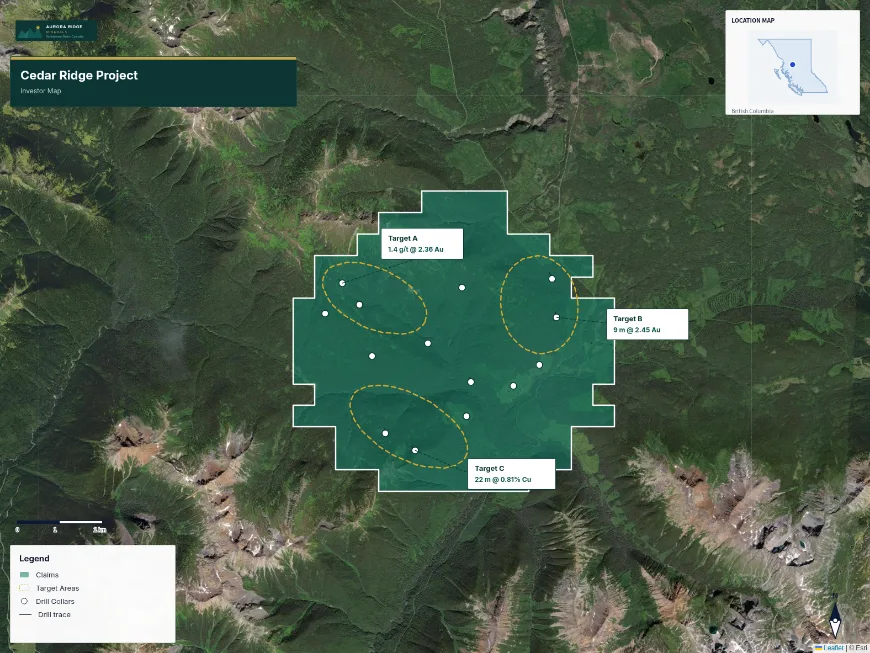
A finished map exported from Exploration Maps — the kind of output this guide walks you to.
Turn public claim data into a clean map.No GIS experience needed — import, style, and export in minutes.
That qualification is not throat-clearing. A map produced in any tool can fail a review for reasons that have nothing to do with the tool — a missing datum statement, an unlabelled figure, a scale that contradicts the text.
Software cannot make a figure NI 43-101 compliant
National Instrument 43-101 is a Canadian Securities Administrators instrument governing disclosure of scientific and technical information about mineral projects. It applies to the disclosure and to the technical report, and responsibility for meeting it rests with the issuer and the qualified person — not with a mapping tool. This guide covers figure conventions that are widely expected in technical reports. Consult the current instrument and companion policy, and your QP, for what your report actually requires: NI 43-101 on the OSC site.
The standard figure checklist
Technical report figures follow strong conventions. Before any map goes to your QP, it should carry:
Title block: project name, figure title, figure number
Company name and map date (effective date of the data)
Scale bar (true ground distance) and north arrow
Legend covering every symbol and line style on the figure
Location/index inset so the reader can place the map
Data sources (e.g. 'Claim boundaries: BC Mineral Titles Online, retrieved 2026-07-06')
Legible styling in print: no reliance on subtle colour differences
Where each element lives in Exploration Maps
Requirement
Where
Notes
Title, company, date
Title block (Design section)
Shows project, subtitle, and date; add figure number to the title text
Scale bar / north arrow
Design section toggles
True-distance scale bar; corner-assignable
Legend
Per-layer legend settings
Every visible layer can carry a legend entry — audit before export
Location inset
Inset map (Design section)
Province/state inset places the property automatically
Source & datum note
Footer text
E.g. 'WGS84 / Web Mercator. Claims: MTO, 2026-07-06. Not an official tenure record.'
Print quality
Export settings
PDF, Letter/A4, pixel ratio 3×
Build it in order
Import claims/drillholes/targets and assign roles so styling follows convention
Choose the Light basemap — it prints cleanly and keeps data prominent
Fill the title block: project, figure title and number, company, date
Enable scale bar, north arrow, legend, and the location inset
Add the footer source/datum note
Set Letter or A4 ratio, frame the figure, export PDF at 3× pixel ratio
What compliance actually means here
Your QP decides — this is figure craft, not legal advice
NI 43-101 is a disclosure standard, and the Qualified Person signing the report decides what its figures must show. The checklist above reflects standard expectations reviewers look for, not a legal guarantee of compliance. Always have the QP review final figures — and verify tenure data against the official registry before it appears in a report.
Build a report-ready figure in minutes.Standard elements on by default — title block, scale, legend, inset.
Does NI 43-101 formally list required map elements?
The instrument requires that maps be legible and support the disclosure (location, tenure, results), and Form 43-101F1 requires certain maps (e.g. location, property). The specific elements — scale, north arrow, legend, sources — are standard professional practice that QPs and reviewers expect on every figure.
What projection/datum note should I use?
State what the map uses — for Exploration Maps exports that's WGS84 geographic data rendered in Web Mercator. A footer like 'WGS84 / Web Mercator; claim boundaries from [registry], retrieved [date]' covers datum, source, and currency in one line.
Can I use a satellite basemap in a technical report figure?
Yes, where imagery adds information (access, terrain, disturbance) — typically the location/access figure. For claim plats and results figures, the Light basemap keeps line work legible in print.
What export settings make a figure print-ready?
PDF at Letter or A4 page size with pixel ratio 3× — roughly 300 DPI equivalent. Check that the smallest text on the figure is still readable at 100% print size.
Is registry claim data reliable enough for a report figure?
Registry pulls are the right starting point, but tenure changes; verify ownership, status, and boundaries against the official registry as of the report's effective date, and date-stamp the source in the figure. The report's QP has final responsibility for the data shown.
Do I need a location inset on every figure?
Not every figure — but the property-location figure needs one, and small-scale detail figures benefit from one so readers stay oriented. It's one toggle, so the practical answer is: include it unless it crowds the figure.