Click 'Draw Distance Ring' in the Annotations section, click the centre point on the map, set the radius in kilometres, and add a curved arc label such as '50 km from Port of Prince Rupert'. Rings are drawn as true great-circle distances.
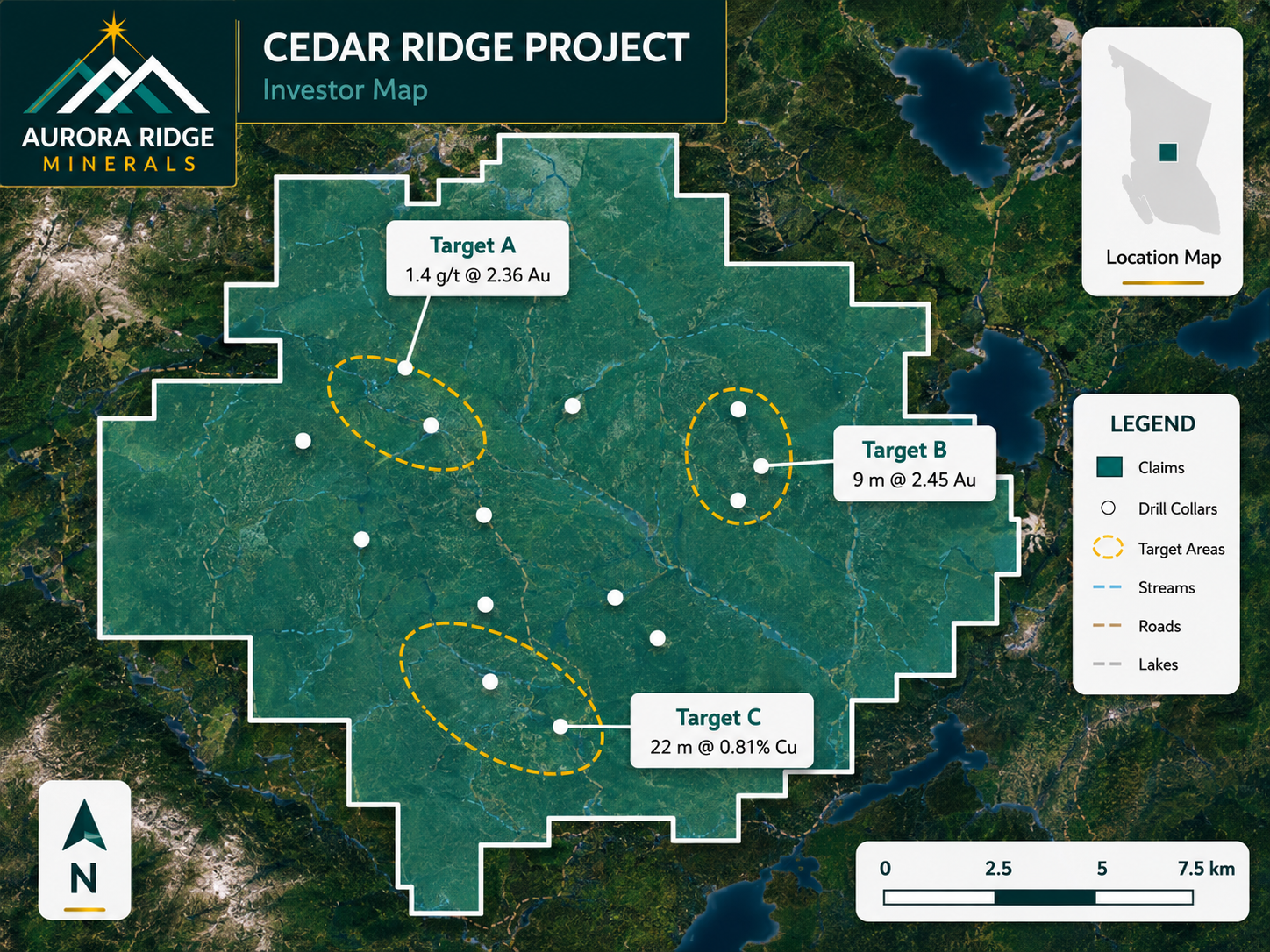
A finished map exported from Exploration Maps — the kind of output this guide walks you to.
Turn public claim data into a clean map.No GIS experience needed — import, style, and export in minutes.
Distance rings turn 'remote project' into a concrete number. Use one when proximity is part of the story:
Distance to the nearest town, port, rail line, mill, or power line
'Within trucking distance' arguments for development-stage projects
Showing several projects within a set radius of shared infrastructure
District-scale maps — '25 km from the discovery' positioning
Placing the ring
Click 'Draw Distance Ring' in the Annotations section, then click the map where the ring should be centred — the infrastructure item is usually the better centre than your project, because the label then reads as the distance to it. Set the radius in kilometres in the ring controls; the ring is computed as a true great-circle distance, so it stays accurate at any latitude.
Labelling the arc
Enable 'Curved arc label' and type the text — e.g. '50 km from Port of Prince Rupert'. The label follows the arc, so it stays readable without covering your data. Keep it short: distance + landmark.
Focusing with outside shade
Outside shade
Enable 'Outside shade' to dim everything beyond the ring with a translucent vignette. It pulls the eye inside the radius — effective on satellite basemaps where imagery competes with your data. Keep the shade subtle; the goal is focus, not blackout.
Import your file and export an investor-ready map.Open the editor and have a shareable map in minutes.
Is the ring a true distance circle or a screen circle?
A true great-circle radius — 50 km on the ring is 50 km on the ground, regardless of latitude or how the web-mercator basemap stretches at high latitudes.
Can I add more than one distance ring?
Yes. Concentric rings (e.g. 25/50/100 km) from one centre work well for regional context; separate rings around different infrastructure points each carry their own label.
Should the ring centre on my project or the infrastructure?
Centre on the infrastructure when the message is 'we are X km from it' — the ring then passes through or near your project, which reads naturally. Centre on the project when showing everything available within a radius.
Does the ring appear in the exported PNG/PDF?
Yes — rings, arc labels, and outside shade all render in exports exactly as on screen, at full export resolution.